 TraceFind
Fitness App Privacy: What Your Strava Profile Shows Strangers
You run the same loop every morning at 6:40, and you log it every time. Open your Strava profile in a private browser window and look at it as a stranger would: the map starts and ends at your front door, and the times show when the flat is empty. Fitness apps are social by default, which is part of the fun. This guide shows what your profile exposes and how to lock it down in about ten minutes.
- A fitness profile shows what you do, not just what you say: when you leave, how often, which routes and which clubs.
- The setting that matters most is map visibility. Hide the start and end of every activity and add your home and work addresses.
- Set the profile and default activities to Followers, and check older activities, because changing the default mostly affects new ones.
- Photos leak what map settings hide: house numbers, plates, doors.
- This article is about protecting yourself. Do not use other people's activity data to work out where they live.
Why fitness data is sensitive
Most social profiles reveal what you say. A fitness profile can reveal what you do: when you leave the house, how often, which routes you favor and which clubs you belong to. Each piece is harmless alone, but together they describe a routine.
The risk is not hypothetical. In early 2018, Strava's global heatmap, which visualized aggregated activity from its users, was widely reported to show the outlines of military bases and patrol routes in remote areas, because service members recorded their runs there. Strava has since changed how the heatmap and its privacy controls work, but the episode is a good illustration of how aggregated, seemingly anonymous activity data can reveal places people would rather keep quiet.
Legal: This article is about protecting yourself and the people you train with. It does not cover, and you should not attempt, using someone else's activity data to work out where they live or when they will be somewhere. See our legal and ethical OSINT guide.
What a public profile shows
With default settings, a Strava profile is visible to anyone. Even before a stranger opens an individual activity, the profile page itself can show a surprising amount, and public activities add the rest.
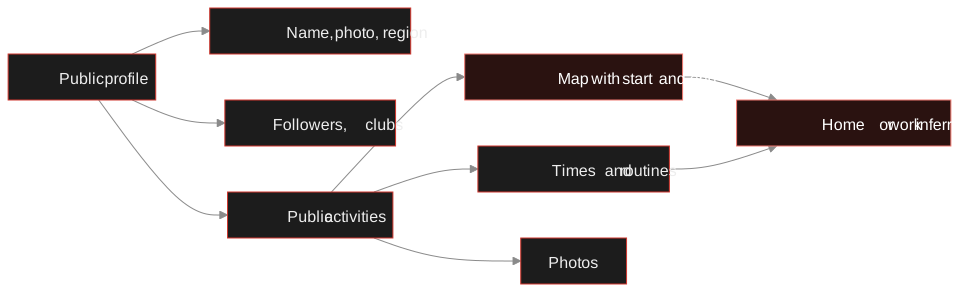
| Field | What it can tell a stranger |
|---|---|
| Name and profile photo | Who you are, and a photo that can be matched to other accounts |
| Stated location | The city or region you entered in your profile |
| Main sport | Whether you mainly run, ride, swim or something else |
| Member since | How long you have used the platform |
| Followers and following | Your training partners and social circle |
| Recent activity count | How active you are right now |
| Clubs | Local running or cycling clubs, often tied to a neighborhood or employer |
If your activities are public as well, they can add maps, start and finish locations, times of day and photos. That is where most of the real exposure comes from, and where Strava's privacy controls help most.
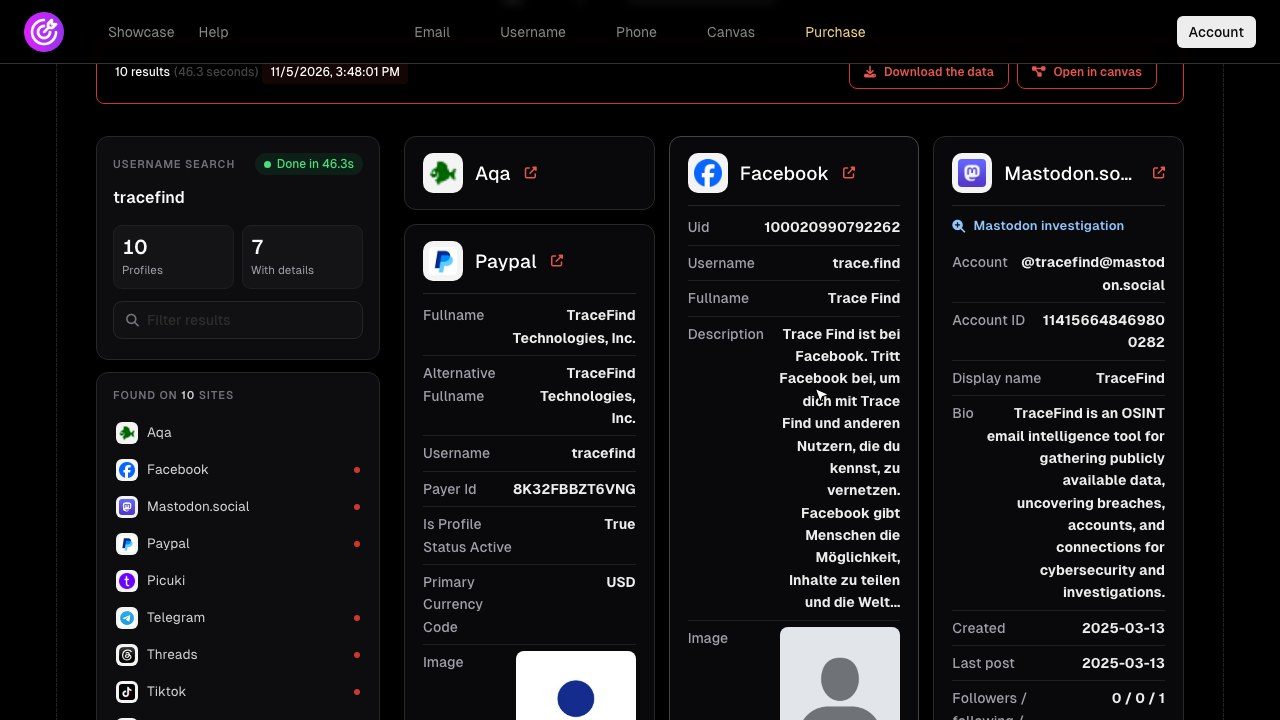
TraceFind's Strava investigation reads only the public profile: name, stated location, main sport, member since, followers, the activity count of the last four weeks, and clubs. It does not collect activities, GPS routes or home locations. Checking your own username shows you exactly what that profile layer reveals.
The Strava privacy controls worth changing
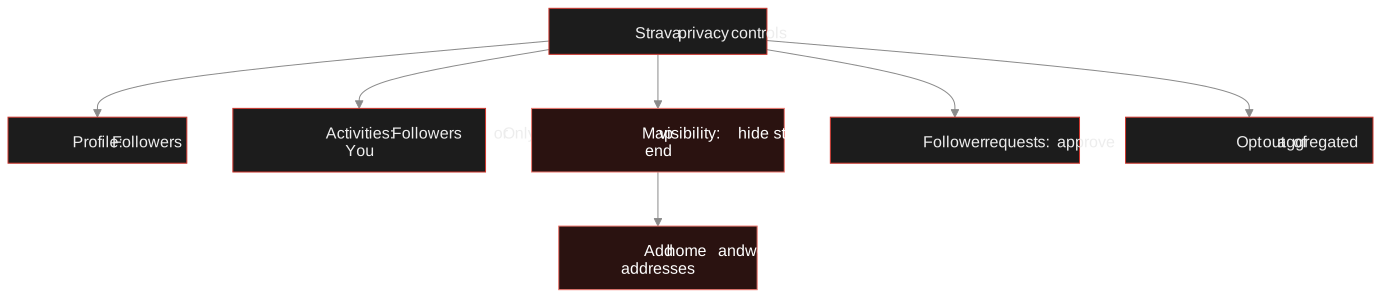
Strava groups its settings under Settings, Privacy Controls. Names can shift slightly between app versions, but the core controls have been stable for years.
Profile page visibility
Set your profile page to Followers instead of Everyone. Only approved followers then see the full profile; strangers get a reduced view.
Activity visibility
Choose who can see new activities: Everyone, Followers or Only You. Followers is a good default for most people. You can also change visibility per activity, which suits runs that start from home or work. Changing the default affects future activities, so check older ones too.
Map visibility: hide start and end points
This is the single most important setting. It hides the start and end portion of every activity, so the map begins and ends some distance from where you really started. You can also hide activities that start or end near specific addresses, such as home or office, or hide the map entirely for an activity.
Tip: Pick a larger hidden distance if you live on a quiet street, where even a partial line points toward a small number of houses. Add every address you regularly start from: home, work, a partner's place, your children's school.
Followers and approvals
Require approval for new followers, and review your follower list now and then. Remove accounts you do not recognize.
Group activities, flybys and mentions
Strava can link you to other athletes who recorded the same activity, show your activity in other users' flyby views, and let people mention you. Restrict these to followers or turn them off if you prefer not to be connected to other people's activities.
Aggregated data and heatmaps
Strava lets you opt out of having your activities contribute to aggregated, de-identified data such as the heatmap. If you train somewhere sensitive, opt out.
Careful: Map visibility only hides map data. A photo of your front door attached to an activity still shows it.
See what your username revealsSearch your handle across about 1,000 sites, including Strava, and see the profile details a stranger would find.
Check your usernameHabits that matter more than settings
Settings handle most of the risk and habits handle the rest, especially if an app ever resets a setting after an update.
- Start recording after you leave home, not in your driveway
- Vary your timing on solo runs and rides when you can
- Keep your profile location general, like a region
- Use a profile photo you do not use elsewhere if you want the account kept separate
- Review connected apps and devices that sync, and remove old ones
- Attach photos with house numbers, plates or recognizable doors
- Leave older home activities public after changing the default
- Accept followers you cannot place
- Use the same avatar everywhere: matching avatars is one of the easiest ways to link profiles
A hidden start point is a backup, not a plan. Leaving the recording off until you are down the street is the plan.
Check your other fitness and social accounts
Strava is rarely the only place your routine shows up. Many fitness, running and cycling apps have public profiles too, and people share activity screenshots on other networks. Run a username search on the handles you use, then an email search for the address you signed up with, to find fitness accounts you have forgotten. Lookups are passive, so the sites are not notified.
For a full self-audit including data brokers, old accounts and breach exposure, follow how to find and shrink your digital footprint. To see how others read usernames in general, there is the username OSINT guide.
The ten-minute checklist
- Profile page set to Followers
- Default activity visibility set to Followers or Only You
- Map visibility hides start and end points, with home and work addresses added
- Older activities from home reviewed and updated
- New followers require approval; unknown followers removed
- Group activity, flybys and mentions restricted as you prefer
- Aggregated data contribution turned off if you train in sensitive places
- Profile location kept general, and no identifying photos on activities
Frequently asked questions
Can strangers see my Strava activities?
With default settings, often yes. Set your profile and activity visibility to Followers or Only You in Strava's privacy controls, and review older activities, since changing the default mainly affects new ones.
How do I hide where my runs start and end on Strava?
Use the map visibility setting in Strava's privacy controls to hide the start and end of your activities, and add addresses such as home and work so activities near them are hidden.
Does TraceFind show Strava routes or home locations?
No. TraceFind reads only the public Strava profile: name, stated location, main sport, member since, followers, the activity count of the last four weeks, and clubs. It does not collect activities, GPS routes or home locations.
Should I stop using fitness apps for privacy reasons?
Not necessarily. With restricted visibility, hidden start and end points and a few habits such as not recording from your doorstep, most of the exposure goes away.
Does hiding the map hide my photos too?
No. Map visibility only hides map data. Photos attached to an activity can still show house numbers, car plates and doors, so check what you attach.
Was the Strava heatmap incident real?
In early 2018 it was widely reported that Strava's global heatmap showed the outlines of military bases and patrol routes. Strava has since changed how the heatmap and its privacy controls work.
Keep reading
-
 Guides
Is OSINT Legal? Ethics and GDPR for Online Investigations
Where the legal and ethical lines run in open source investigations, and the habits that keep your work defensible.
-
 Privacy
How to Find and Shrink Your Digital Footprint
A step-by-step self-audit: find what your email, usernames and phone number expose, then remove old accounts and clean up after breaches.
-
 Guides
Username OSINT: How to Find Accounts From a Username
Enumerate accounts from one handle, weed out false positives and prove that two profiles belong to the same person.