 TraceFind
Use TraceFind in Claude, Cursor and Other AI Assistants (MCP)
You are halfway through a write-up in Claude or Cursor and need to know which accounts sit behind an email address. Instead of switching tabs, you ask the assistant. This guide shows how to connect TraceFind as an MCP server, what the assistant can and cannot do with it, and how to keep it on a short leash.
- TraceFind is an MCP server at
{API base URL}/mcp. Most clients need only that URL and a browser sign-in. - The assistant gets six tools: start a search, check on it, list searches, list and open reports, and read your credit balance.
- Billing is the same as on the site: 2 credits per search, refunded when nothing is found. Reading reports is free.
- A read-only connection can look at your history but cannot spend credits.
What MCP is, in one paragraph
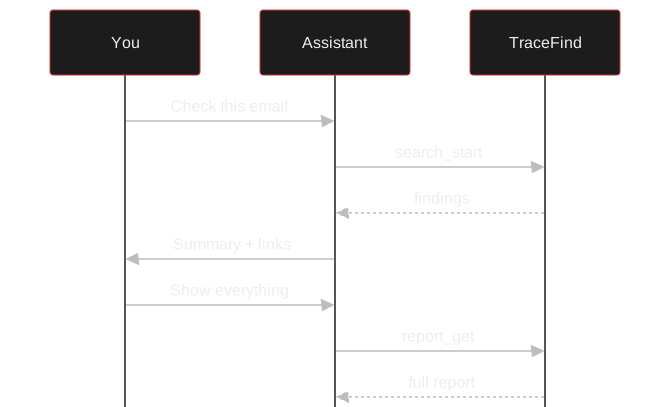
The Model Context Protocol is a standard way for an AI assistant to call outside tools. The assistant reads a short description of each tool, decides when one would help, and calls it with the arguments it thinks fit. You stay in the conversation: most clients show the call and ask before running it. For TraceFind that means you can say "check which accounts are linked to jane.doe@example.com" and the assistant runs the email search, waits for it and summarises what came back, with links to the full report.
Under the hood it is the TraceFind API in another shape. The same scopes, the same rate limit and the same credits apply, so nothing the assistant does is something you could not do yourself on the search page.
Connect your assistant
Every client needs the same three facts. Where they go differs by client, and the exact snippets for each one are on the API page and, once you are signed in, under Account → API with one-click install for Cursor and VS Code.
| Setting | Value |
|---|---|
| Server URL | {API base URL}/mcp |
| Transport | Streamable HTTP |
| Auth | Sign in through the browser (OAuth), or an API token |
-
Claude (claude.ai and the apps)
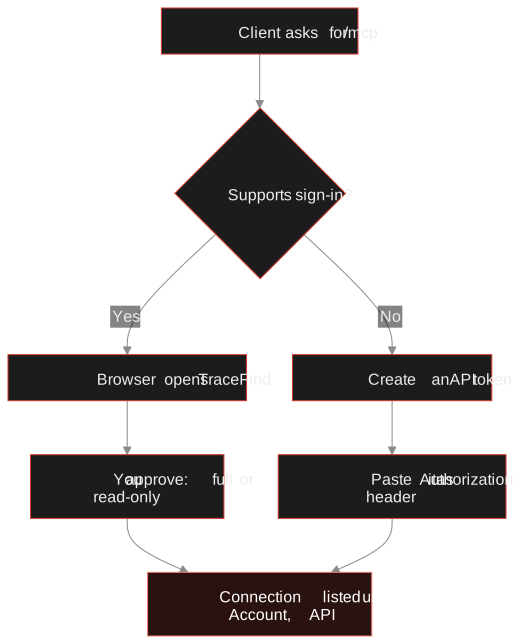
Open Customize → Connectors → Add → Add custom connector. Name it TraceFind, paste the URL and add it. Claude opens a TraceFind page where you approve the connection; there is no token to copy. On Team and Enterprise plans an owner adds the connector once under Organization settings, and members click Connect.
-
Claude Code
One command, then sign in from
/mcpinside Claude Code:bashclaude mcp add --transport http tracefind {API base URL}/mcp -
Cursor and VS Code
Add the server to
~/.cursor/mcp.json(Cursor) or.vscode/mcp.json(VS Code). Both ask you to sign in the first time the assistant uses it.~/.cursor/mcp.json{ "mcpServers": { "tracefind": { "url": "{API base URL}/mcp" } } } -
Codex, Devin Desktop, Antigravity, Gemini CLI
All four sign in through the browser too. Codex is
codex mcp add tracefind --url {API base URL}/mcpfollowed bycodex mcp login tracefind; the config file names for the others are listed on the API page. -
Clients without sign-in (Cline and others)
Create a token under Account → API and send it as
Authorization: Bearer tf_live_…. Restart the client after editing its config, and keep that file private: a token in a config file is stored in plain text.
Tip: give every assistant its own connection or token. Account → API then shows when each one was last used, and you can revoke one without breaking the others.
The six tools the assistant gets
The assistant only sees what the server describes. These are the tools, with the scope each one needs:
| Tool | Scope | What it does |
|---|---|---|
search_start | search | Runs an email, username or phone search and waits up to 50 seconds for the result (up to 120 if asked). Spends credits. |
search_get | read | Status of a search, with its findings once it is done. |
search_list | read | Recent searches started through the API or MCP. |
report_list | read | Your whole search history, newest first. |
report_get | read | One report with all of its findings. |
get_account | read | Credits left, the connection's scope and limits. |
Errors come back as plain sentences rather than codes, so when you are out of credits the assistant can say so instead of guessing. Searches longer than the wait keep running on TraceFind; the assistant can pick them up later with search_get, and they appear in your history like any other search.
Set it up in two minutes.Sign in, open Account → API and copy the snippet for your client, or use the one-click install for Cursor and VS Code.
Open the setup guidePrompts that work well
The assistant is good at the parts around the search: deciding which search fits, waiting, reading a long report and pulling out what matters for your question. A few examples that play to that:
- "Run an email search for jane.doe@example.com and list only the accounts created before 2020."
- "Search the username jdoe-dev, then tell me which of the profiles share the same avatar or bio."
- "Open my last three reports and make a table of every breach that exposed a password."
- "How many credits do I have left, and how many searches is that?"
A trust and safety analyst is reviewing a marketplace seller in Cursor, next to the case notes. They ask: "check the seller email from line 12 and tell me whether it shows up in breaches older than the account". The assistant calls search_start, gets 14 accounts and 3 breaches back, compares the breach dates with the account age in the notes, and answers in two lines with a link to the report. The analyst opens the report only to confirm the one breach that matters.
Two habits keep the answers honest. Ask the assistant to link the report it is quoting, so you can check a finding at the source. And treat its summary as a summary: a profile with the same name is a lead, not proof, exactly as in reading a result yourself.
Keep it on a short leash
- Approve a read-only connection for assistants that only summarise reports.
- Use one connection per assistant and revoke the ones you stop using.
- Keep the client's "ask before running a tool" setting on for
search_start.
- Paste a token into a shared or synced config file.
- Let an autonomous agent loop over a list of people. Use bulk search for lists you have a reason to check.
- Ask it to search people you have no lawful reason to look into.
A read-only connection is the simplest safeguard: the server does not offer search_start to it at all, so a confused or manipulated assistant cannot spend credits. For anything that searches, the rate limit and the credit balance cap what can happen, and every search appears in your history.
Legal: an assistant acting for you is still you. The same rules apply as to a search you type yourself: a lawful purpose, no access to accounts, no harassment. The legal and ethical guide covers what that means under the GDPR.
Check the connection without a client
If a client refuses to connect, test the server directly. It speaks JSON-RPC over plain HTTP, so curl with a token is enough to list the tools:
curl -X POST {API base URL}/mcp \
  -H "Authorization: Bearer $TRACEFIND_TOKEN" \
  -H "Content-Type: application/json" \
  -H "Accept: application/json, text/event-stream" \
  -d '{"jsonrpc": "2.0", "id": 1, "method": "tools/list"}'
A list of six tools (or five, with a read token) means the server and the token are fine and the problem is in the client's config. A 401 means the token is wrong, expired or revoked. If you are writing your own integration rather than using an assistant, the plain REST endpoints in the API tutorial are usually simpler than MCP.
Frequently asked questions
Is the MCP server free?
Connecting is free. The server uses the same billing as the website and the API: a search costs 2 credits and is refunded when nothing is found. Reading your history and reports costs nothing.
Which AI assistants work with it?
Any client that speaks MCP over Streamable HTTP. Claude, Claude Code, Cursor, VS Code, Devin Desktop, Codex, Antigravity and Gemini CLI sign in through the browser; clients without sign-in support, such as Cline, take an API token in a header.
Can the assistant spend my credits without asking?
Only a connection with search access can start searches, and most clients ask before calling a tool. If you want to be sure, approve the connection as read-only or give it a read token: then search_start is not offered to the assistant at all.
Does the assistant see my account number?
No. Responses from the API and the MCP server never include the account number, so a token or connection handed to a tool cannot leak your login.
How do I disconnect an assistant?
Open Account → API. Every signed-in connection and every token is listed there with when it was last used, and you can revoke each one on its own.
Keep reading
-
 Tutorials
TraceFind API Tutorial: Run Searches and Fetch Reports from Code
Create a token, run a search with curl, Python or Node, poll for the result, handle 429s and export reports. Real endpoints and limits.
-
 Tutorials
How to read an email search result
Counters, mailbox verdict, breaches and accounts: what each part of an email result means and what it does not prove.
-
 Tutorials
Bulk Email Lookup: Check a Whole List at Once
Upload a CSV of email addresses, see the cost first, then read breaches, accounts and deliverability for every row.