 TraceFind
Bulk Email Lookup: Check a Whole List at Once
Your fraud tool flagged 200 sign-ups and someone has to look at every address. Pasting them into a search box one by one is an afternoon you will not get back. This tutorial shows how to upload the list, read the cost before it runs, and work through one results table instead.
- Upload a CSV or TXT file, or paste a list, and TraceFind runs a normal email search for every row in the background. You can close the page.
- You see the entry count and the maximum cost before anything runs. Duplicates and invalid lines are skipped and never charged.
- Each entry costs 5 credits (1.25 EUR), refunded when the search finds nothing. Bulk searches use purchased credits only.
- Results land on their own page with filters, per-entry details and a CSV export, and every search also goes into your history.
- A list holds up to 500 entries and 1 MB. Longer lists need splitting.
The spreadsheet nobody wants to do by hand
Week 45. Your fraud tool flagged 200 sign-ups, and someone has to decide which ones are worth a closer look. The sensible first filter is the same on every row: does this address have a history? Is it deliverable, does it appear in breach records, is it registered anywhere? Pasting 200 addresses into a search box one at a time is an afternoon, and it is the kind of afternoon where row 140 gets less attention than row 4.
This is what bulk email lookup is for. You hand over the list, it runs the same search as the email search for each address, and you get one table back that you can sort, filter and export. The rest of this tutorial walks through it with a fictional list, and covers the limits and the money so there are no surprises. Throughout, the addresses are made up: jane.doe@example.net and friends.
How it works, on one page
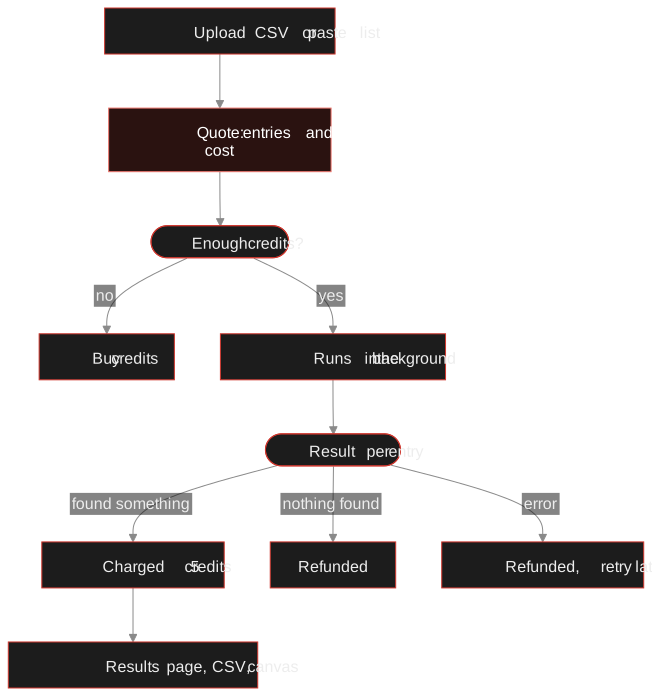
Nothing about a bulk search is magic. Each entry is an ordinary email search run for you, so what you get per row is what you would get by hand: breaches with dates, registered accounts and a deliverability check. What bulk adds is the queue, the quote up front and the results table.
Run your first bulk search
-
Open the bulk page and choose the list type
The bulk search page handles emails, usernames and phone numbers. Pick Emails. You need to be signed in, and since bulk searches use purchased credits, you need a balance (more on that below).
-
Drop in a file or paste the list
Upload a CSV or TXT file up to 1 MB, or paste entries into the box. One address per line works, and so does a normal CSV export: every cell that looks like an email address counts, and a header row such as
signup_id,email,createdis recognised and ignored. Give the job a name you will recognise next week.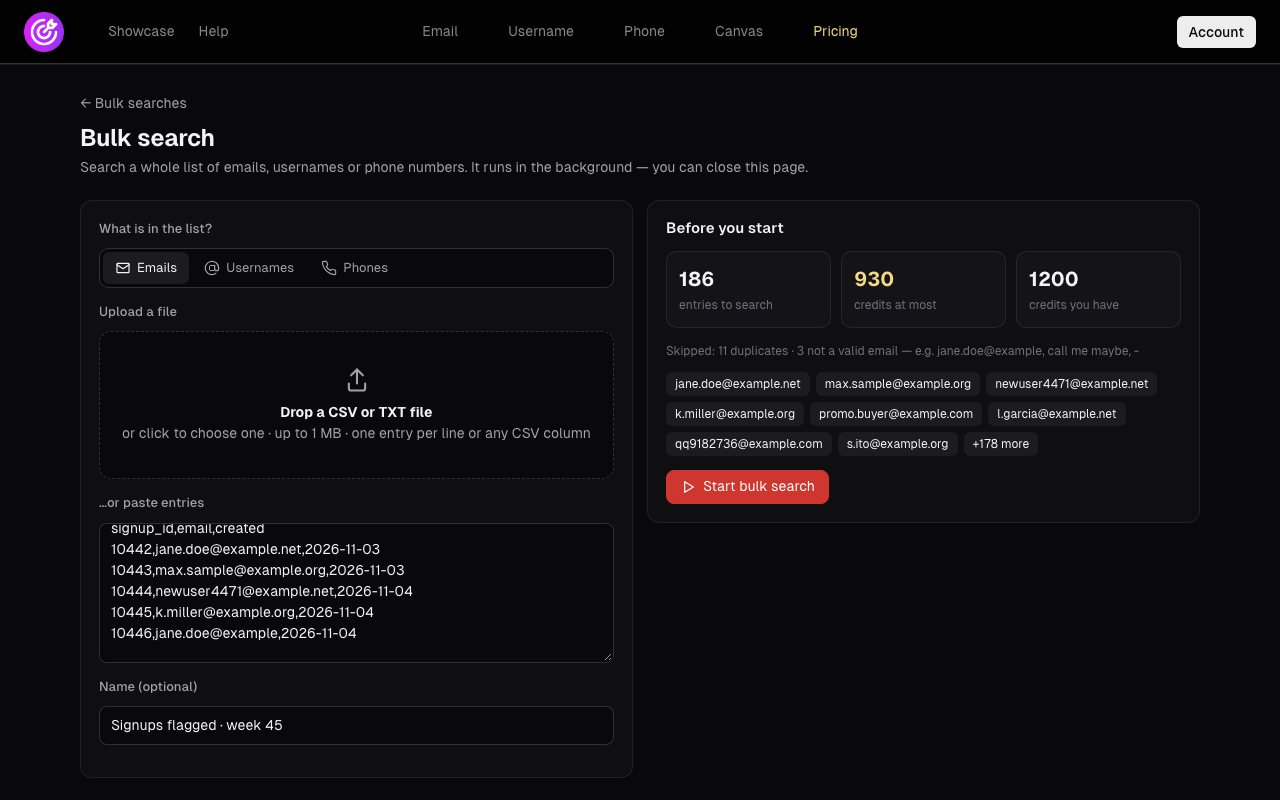
Left: the pasted CSV and the job name. Right: the quote. 186 valid entries, at most 930 credits, 1,200 in the account. The skipped line tells you what it ignored, with examples. -
Read the quote before you press start
The panel on the right is the whole point. It tells you how many entries will be searched, the most it can cost, and your balance. Look at the skipped line too: here 11 duplicates and 3 lines that are not valid addresses (the sample shows
jane.doe@example, missing its top-level domain, and a straycall me maybe). If you are short of credits, the page says by how many and links to the purchase page instead of starting. -
Start it and go do something else
The search runs on the server, so closing the tab or your laptop does not stop it. You can find the job again under Account, Bulk searches, where running jobs show a progress bar. An option in your alert settings emails you when a bulk search finishes.
What it costs, in plain numbers
The rule is short: every entry is one normal search at 5 credits, which is 1.25 EUR at 0.25 EUR per credit. If the search finds nothing for that address, the 5 credits come back. If it errors, they come back too. So the quote is a ceiling, and the real bill is the number of addresses that turned something up, times five.
| What happens to an entry | Charged |
|---|---|
| Duplicate or invalid line | Never charged, skipped before the quote |
| Search finds something | 5 credits |
| Search finds nothing | Refunded |
| Search fails | Refunded; retry it from the results page |
| You cancel before it starts | Not charged. Searches already running finish. |
Bulk searches use purchased credits only. The free searches on a new account, and the free credits from the canvas sign-up, cannot be spent on a list. If you run out partway, the job pauses, and you can resume it after topping up.
Reading the results page
When the job finishes (or while it runs, because the page updates live) you land on its own results page. Up top are the numbers that matter: progress, how many entries had results, how many found nothing, how many failed, and the credits spent so far.
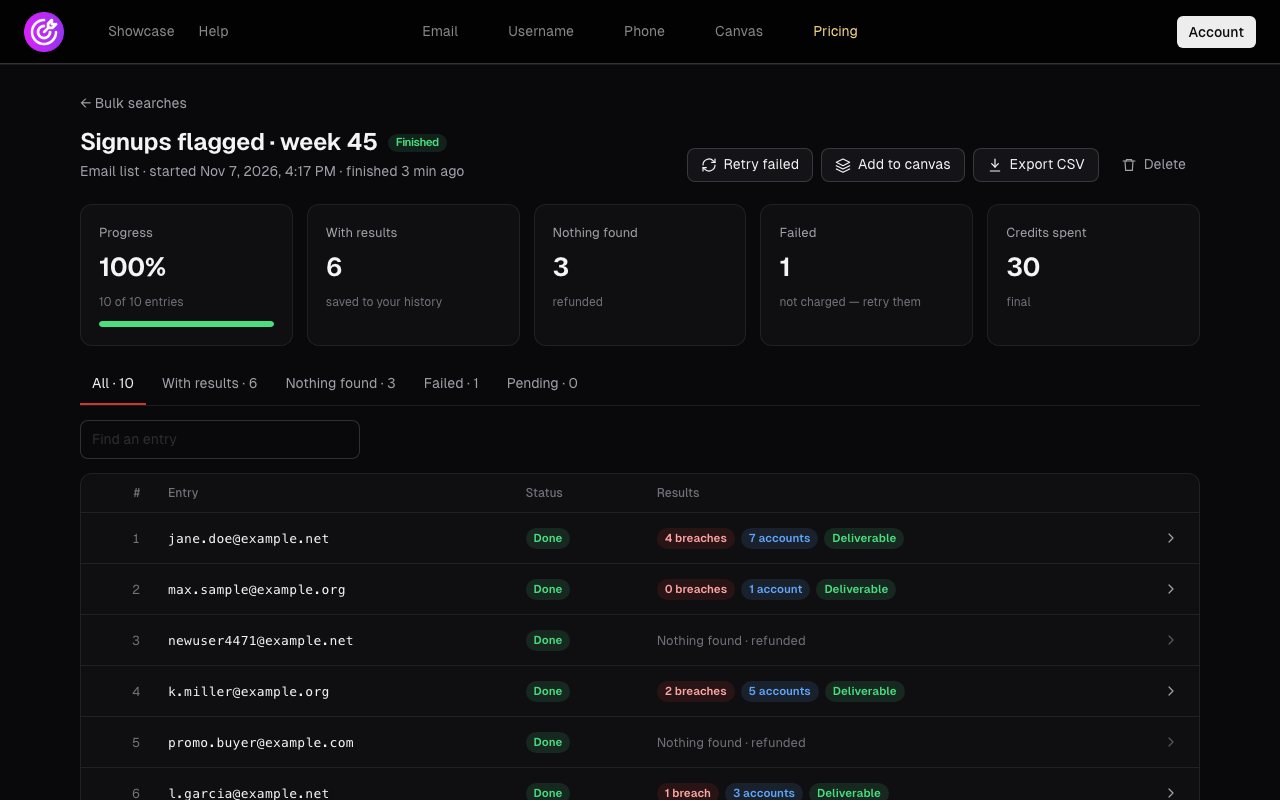
Each row summarises one address in chips: how many breaches, how many registered accounts, and whether it is deliverable. Click a row to expand it.
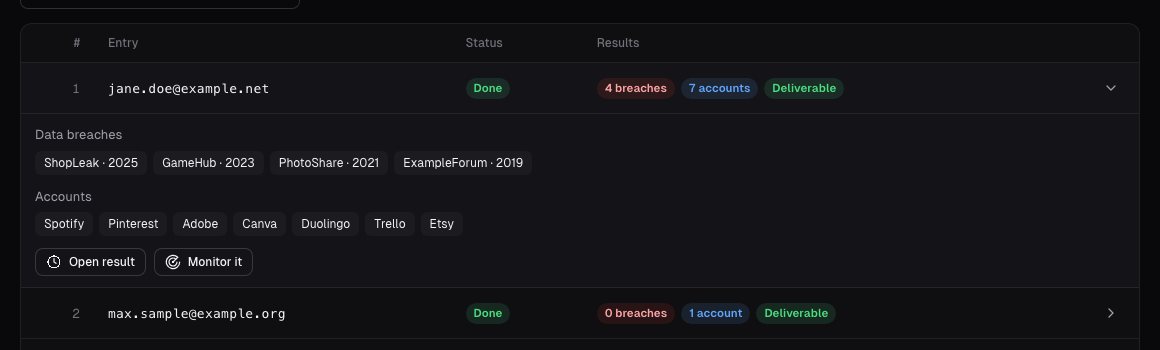
For the fraud triage from the intro, a few patterns do most of the work:
- Breaches from several years ago mean the address has existed for a while. Boring and reassuring.
- Nothing found is not proof of anything. Plenty of real people have a young or quiet address. It means: look at the other signals before deciding.
- Not deliverable on a sign-up is worth a follow-up. The mechanics are in how email verification works.
- Many accounts, few breaches, or the reverse, tells you different things. What each hit proves is in the email OSINT guide.
Back to the week 45 list. After the run, you filter to Nothing found and get 23 addresses. Those are the ones with no breach history and no registrations: young or quiet addresses. Next you check how they look on the mailbox side, and 9 of them are not deliverable. Those 9 go to manual review, the other 14 get a normal welcome email, and the 150-odd addresses with long, boring histories are never looked at again. The afternoon became twenty minutes of reading plus whatever the run cost: at most 930 credits, less the refunds for the empty ones.
Have a list waiting? Upload it and read the quote first. You see the entry count and maximum cost before anything is charged.
Open bulk searchAfter the run: export, retry, canvas
- Export CSV gives you a file with the entry, its status, a summary and the report ID. The export is written so that a spreadsheet will not run a formula hidden in a cell.
- Retry failed re-runs only the entries that errored. Interrupted searches are refunded, so retrying costs nothing extra.
- Add to canvas places every entry that found something on an investigation canvas with its results. Nothing is searched again, so this is free. You can also start a bulk search from inside a canvas.
- Monitor it on an expanded row sets up a recurring check for that address.
- Delete removes the results page. Every search in it stays in your search history.
Limits worth knowing before you plan
| Limit | Value |
|---|---|
| Entries per list | 500 (extra entries are not searched; split the file) |
| File size | 1 MB, CSV or TXT |
| Bulk searches running at once | 3 per account |
| Saved bulk searches | 200 per account; delete older ones to make room |
| Speed | Email entries run two at a time |
That last row is the one that surprises people. A single email search takes about 45 seconds and two run side by side, so a hundred addresses take the better part of an hour and a full 500 a good part of a day. Start long lists before lunch, not before a meeting. If you would rather script the whole thing, the API exists for that.
- Check the quote and the skipped line first
- Name the job so you find it later
- Split lists over 500 entries
- Keep only the columns you need in the export
- Run a list you have no purpose for
- Read "nothing found" as "suspicious"
- Rely on free credits for bulk work
- Keep the export longer than the case needs
Legal: A list of other people's email addresses is personal data. Have a lawful purpose (fraud prevention, security), search only what the purpose needs, and delete results when the case closes. Our OSINT legal and ethics guide covers the details, and checking your own address needs none of this.
A list is just a thousand single lookups with the boring part removed.
If your list is staff addresses rather than customers, read employee breach monitoring first. It covers doing this while respecting privacy.
Frequently asked questions
How many emails can I search at once?
A single bulk search holds up to 500 entries and the file can be up to 1 MB. Longer lists need to be split into several searches. You can run up to 3 bulk searches at the same time.
How much does a bulk email lookup cost?
Each entry is a normal search at 5 credits, which is 1.25 EUR at 0.25 EUR per credit. It is refunded when the search finds nothing or fails. The page shows the entry count and the maximum cost before you start.
Can I use my free searches for a bulk search?
No. Bulk searches use purchased credits only. The 3 free searches on a free account and the free credits from the canvas sign-up cannot be spent on a list.
What file format should my list be in?
CSV or TXT. One address per line works, and so does a regular CSV export: every cell that is a valid address counts, and a header row is ignored. Duplicates and invalid lines are skipped and not charged.
Do I have to keep the page open?
No. The search runs on the server in the background. Come back to the results page or find it under Account, Bulk searches, and turn on the email alert to hear when it finishes.
Can I get the results into a spreadsheet?
Yes. Export CSV on the results page gives one row per entry with its status and a summary. You can also add the results to an investigation canvas without paying again.
Keep reading
-
 Tutorials
How to Verify an Email Address Exists Without Sending Mail
MX lookups, SMTP RCPT probing, catch-all detection and disposable checks: how email verification works and where it stops being reliable.
-
 Guides
How to Find Accounts Linked to an Email Address
Pivot from one email to accounts, breaches, usernames and profiles, then grade every finding. With a worked fraud case.
-
 Guides
Is OSINT Legal? Ethics and GDPR for Online Investigations
Where the legal and ethical lines run in open source investigations, and the habits that keep your work defensible.