 TraceFind
Set Up Breach Monitoring and Alerts for an Email, Username or Phone
You checked your email for breaches in March, changed two passwords and felt fine about it. In October a shopping site you used in 2021 leaks its customer table, and you hear about it in December, from a stranger. A one-off search is a photo; a monitor is a camera that only wakes you when something changes. This tutorial sets one up in about two minutes and explains exactly what it does, what it costs and what it cannot see.
- A monitor repeats a normal TraceFind search on a schedule (daily, weekly or monthly) and alerts you when something new turns up.
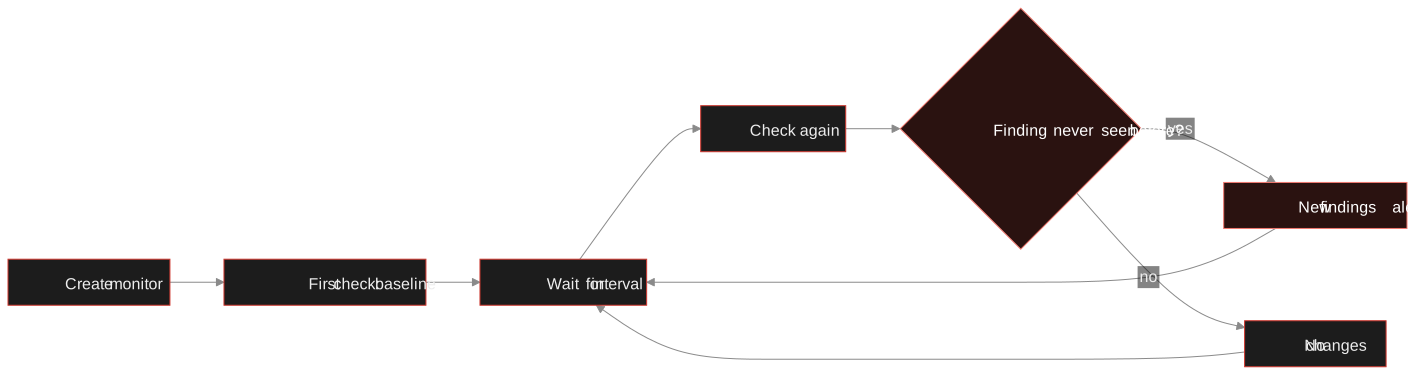
- The first check records a baseline right away. Only findings never seen in an earlier check count as new.
- Each check costs 5 credits and is refunded when it finds nothing. Monitors use purchased credits only.
- You can keep up to 20 monitors. Email alerts never contain findings, only a link back to your dashboard.
What a monitor actually does
A monitor takes one email address, username or phone number and runs the same search you would run by hand: registrations and breaches for an email, profiles for a username, messenger registrations and web mentions for a phone number. It then does it again every day, week or month, and compares.
The comparison is the interesting part. A finding counts as new if this monitor has never seen it in any earlier check, not just the last one. That choice is deliberate: if a source is briefly unreachable during one check and comes back at the next, you do not get a burst of fake "new" alerts for things you already knew about.
Before you start
- An account with purchased credits. Monitoring never dips into the free sign-up credits, and a monitor whose account runs out of credits is paused rather than switched to the free allowance.
- The exact value to watch: an email address, a username (letters, digits, dots, underscores, hyphens) or a phone number with its country code, such as
+49 151 00000000. - A decision about who this is for. Watch your own details, or someone else's only with a legitimate reason. Our legal and ethical guide covers what that means.
Create your first monitor
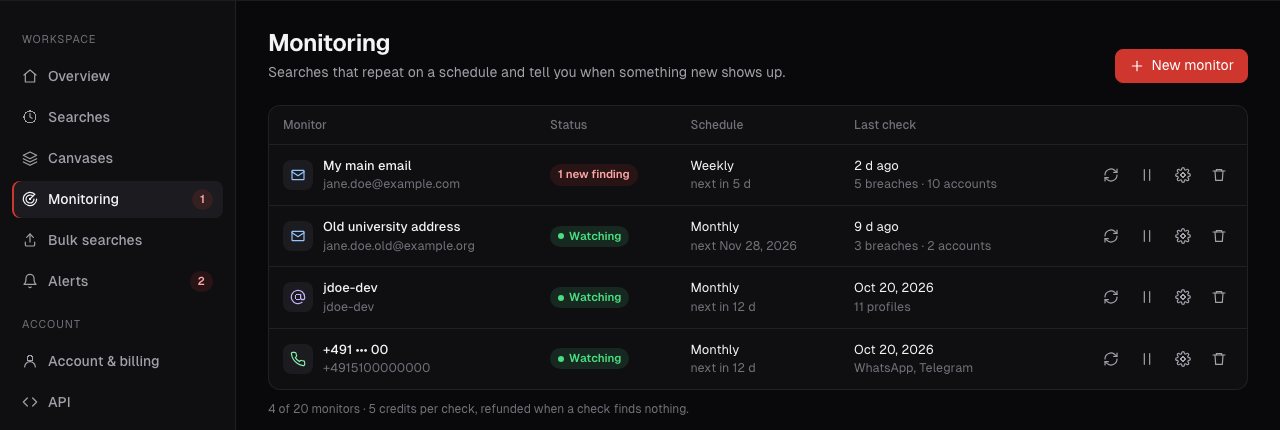
Monitors live on your account dashboard under Monitoring. The list shows each one with its status, schedule and the result of the last check.
-
Choose what to watch
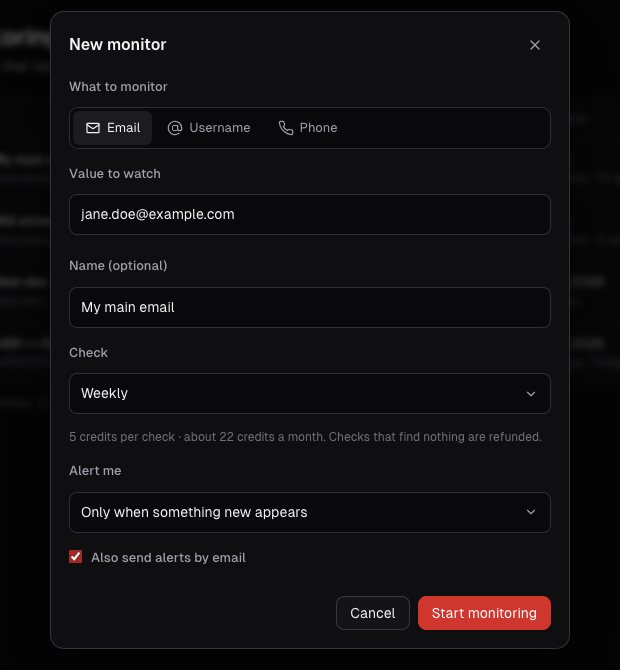
Press New monitor and pick Email, Username or Phone, then enter the value. Giving it a name is optional. Without one, TraceFind uses a masked label so the list does not show full values at a glance.
-
Pick a schedule
Daily, weekly or monthly. For your own main email, weekly is a sensible default. A username or an old address rarely changes, so monthly is usually enough.
-
Choose when to be alerted
"Only when something new appears" keeps it quiet. "Every check" also tells you when nothing changed, which is useful for the first few weeks when you want to see it working. You can tick "Also send alerts by email".
-
Start monitoring
The first check runs immediately and records the baseline. From then on the schedule counts from the last check.
What it costs
Every check is an ordinary search, so it costs the normal 5 credits (1.25 EUR at 0.25 EUR per credit) and is refunded when nothing is found. The schedule decides how often that happens.
| Schedule | Checks a month | Credits a month, at most |
|---|---|---|
| Daily | about 30 | about 150 |
| Weekly | about 4 | about 22 |
| Monthly | 1 | 5 |
Those are ceilings: a check that finds nothing is refunded, but an address with years of history will always find something, so for an established email treat the figures as the real cost. If credits run short, the monitor pauses with a note and an alert; buy credits and resume it from the list.
Tip: Weekly for your main address and monthly for two or three others comes to roughly 37 credits a month at most, and a breach rarely needs a daily response.
Reading the timeline
Click a monitor to open its timeline: one entry per check, newest first, with the status, the number of findings in that check and the actual new items.
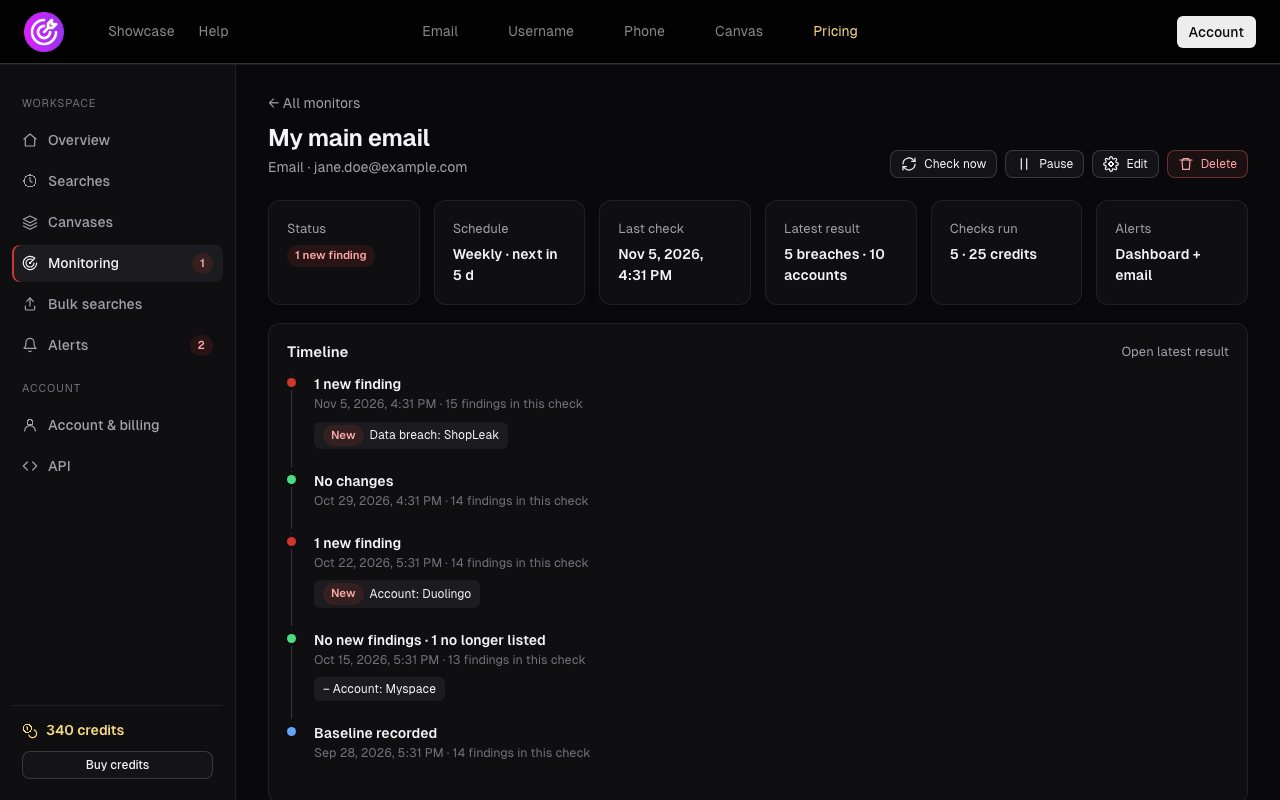
Three kinds of entry deserve a sentence each:
- Baseline recorded. The first check. Everything found here counts as already known and is never reported as new.
- New finding. Something not seen in any earlier check, such as a breach or an account on a site. Open the latest result to see the full report.
- No new findings, 1 no longer listed. Something from an earlier check was not found this time. That is recorded in the timeline but does not trigger an alert, because a site being slow or down on the day looks the same as a deleted account.
Jane starts a weekly monitor on jane.doe@example.com on 28 September. The baseline records 14 findings. On 15 October the check finds 13: an old Myspace account is no longer listed, and she gets no alert. On 22 October a Duolingo account appears and she is alerted: she signed up for a language course that week, so she dismisses it. On 5 November a breach named ShopLeak appears.
That one she did not expect. She opens the report, sees which data types were exposed, changes the password she used on that shop, and checks that the same password is not in use anywhere else. Time from breach appearing to Jane acting: one weekly interval at most.
How alerts reach you
Every monitor writes to the Alerts page on your dashboard. Email is optional and set per monitor.
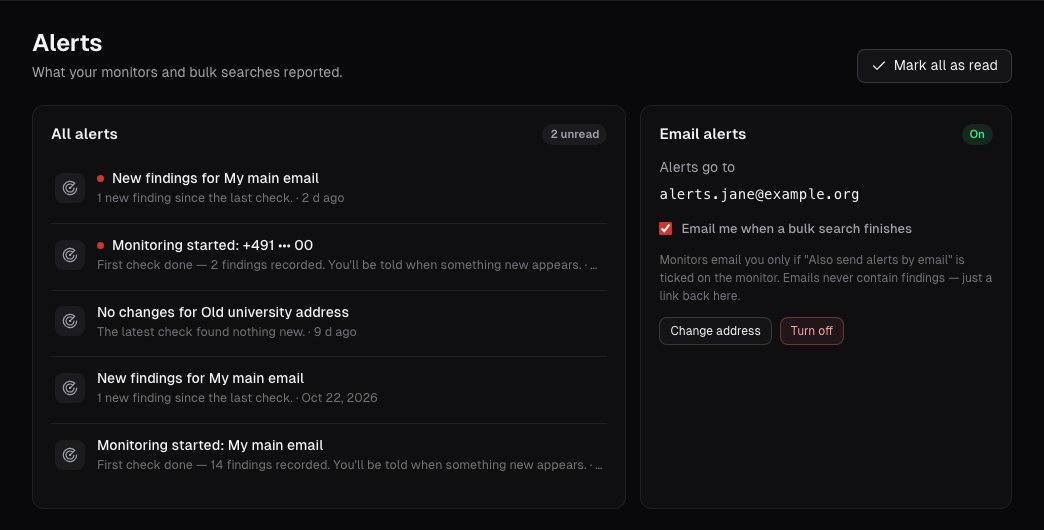
That last point is on purpose. An email that said "your password from Service X leaked" would be a second sensitive document sitting in an inbox that gets forwarded, synced and searched. A link keeps the detail behind your login. If you use a separate address for alerts, you can change it on this page.
Managing monitors
Each row has four controls: check now, pause or resume, edit and delete.
- Check now runs a check immediately, at most once an hour per monitor, and costs the usual 5 credits.
- Edit changes the name, schedule or alert settings. Changing the schedule counts from the last check.
- Pause stops checks without losing the history. Resuming needs enough credits for a check.
- Delete removes the monitor and its timeline. The searches themselves stay in your search history.
You cannot monitor the same value twice (you get a "You already monitor this" message), and the limit is 20 monitors per account. If a check fails or times out, it refunds itself and tries again within about six hours at most, rather than waiting a whole interval.
Start a monitorOpen your dashboard, choose Monitoring and press New monitor. Your first check runs straight away.
Open the dashboardWhat a monitor cannot see
Be honest about the gaps so the quiet weeks do not give false comfort.
- It sees what a normal TraceFind search can see: sign-up checks on supported sites, breach records in our sources, public profiles. It does not read your inbox or watch the dark web live.
- A breach is only found once it is in the data we search. There is always a lag between a leak and a record.
- A new registration means an account was created with that address. It might be you, a forgotten app, or someone who typed your address wrong.
When an alert does arrive, what to do after a data breach walks through the response, and shrinking your digital footprint shows how to reduce what there is to find. For a team's work addresses, see employee breach monitoring. To run one-off searches from code instead, read the API tutorial.
Frequently asked questions
What is a TraceFind monitor?
A monitor repeats an email, username or phone search on a schedule (daily, weekly or monthly) and alerts you when something new appears, such as a new breach, a new account or a new messenger registration.
How much does monitoring cost?
Each check costs 5 credits and is refunded when it finds nothing. A weekly monitor costs about 22 credits a month at most and a monthly one 5. Monitors use purchased credits, not the free sign-up credits.
Will I be alerted about things that were already there?
No. The first check records a baseline; its findings are never reported as new. Only findings that were never seen in any earlier check of that monitor count as new.
Do alert emails contain the findings?
No. Alert emails contain only a link back to your dashboard. The findings stay behind your login.
What happens if I run out of credits?
The monitor pauses, you get an alert, and it never switches to the free allowance. Buy credits and resume it from the Monitoring page.
How many monitors can I have?
Up to 20 per account. You can run a manual check on a monitor at most once an hour.
Keep reading
-
 Guides
Is OSINT Legal? Ethics and GDPR for Online Investigations
Where the legal and ethical lines run in open source investigations, and the habits that keep your work defensible.
-
 Privacy
How to Check If Your Email Was in a Data Breach
Find out which breaches exposed your email, how to read the results, and the exact steps to take afterward.
-
 Privacy
How to Find and Shrink Your Digital Footprint
A step-by-step self-audit: find what your email, usernames and phone number expose, then remove old accounts and clean up after breaches.