 TraceFind
Person Search: What the Web Shows About a Name
Searching a name is easy and sorting the results is the work. Here is how to give TraceFind context, read the identities it proposes, and use the same screen to check your own exposure.
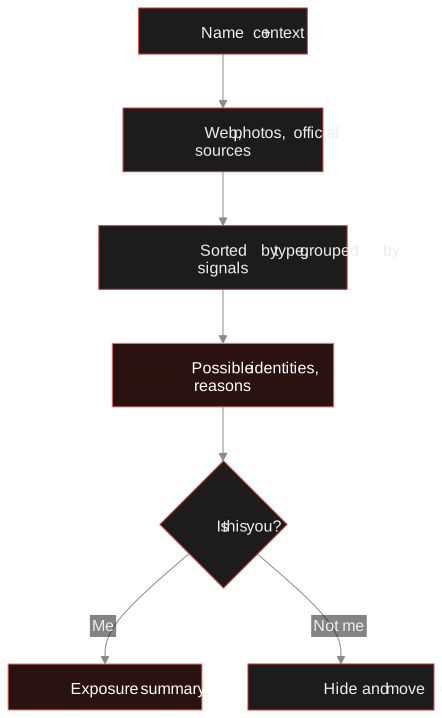
- A name alone is the weakest thing you can search. TraceFind asks for context first (city, employer, school, age, a known email or username) so it can tell people with the same name apart.
- The search asks web search engines, photo results, official APIs and the Internet Archive, then groups what it finds into possible identities and says why it grouped them.
- It is passive: nothing about the person is fetched or contacted, and the search is free for signed-in accounts.
- The same screen works as a self-check: mark pages as yours, get an exposure summary and next steps.
- A hit proves a page mentions the name, not that it is your person. Treat identities as leads to verify.
Say your colleague forwards you a CV for a freelance developer called Jane Doe, and you want to know whether the person who sent it exists the way the CV claims. You type the name into a search engine and get four pages of strangers: a dentist in Ohio, a marathon result, an obituary from 1998. That is the whole problem with searching people by name. The search is easy; the sorting is the work.
Why a name alone fails
Names repeat. A common name matches hundreds of people, and each added page makes the picture noisier, not clearer. Practitioners who do this for a living all land on the same advice: treat the name as the weakest identifier you have and add context before you read anything.
TraceFind builds that into the first step. Before it searches, it shows a short form titled "Before we search" and says how common the name looks, so you know in advance whether you are looking at a needle or a haystack. Everything on the form is optional, and "No, search without details" runs it on the name alone.
Give it context
Each field you fill in does two things: it goes into extra search queries (for example the name together with a city), and it is used when results are scored and grouped. These are the fields:
| Field | What it does |
|---|---|
| City or country | Added to queries; pages that mention the place score higher |
| Employer, school | Added to queries; ties a profile or a paper to the right person |
| Age, gender | Only used to grey out photos that clearly do not fit. Photos are never hidden |
| Email, username, phone | Anchors: a page that shows one of these belongs to your person |
| Former name | One word (a maiden or earlier surname); searched alongside the name |
The search also tries the spellings people actually use: Müller, Mueller and Muller, short forms of first names, initials, surname first. It keeps the set small on purpose, because every extra variant adds noise.
Tip: two details beat ten. A city plus an employer usually separates a name better than a long list of vague facts. If you already have a verified email or username, give that: it is the strongest anchor there is.
What comes back
Results arrive as they finish, so the page fills while the search runs. There are five kinds of material.
Web pages, sorted by type
Up to 80 results from several search engines, each classified by its address: social profiles, news and press, company registers and imprints, academic pages, documents, people-search sites, and the rest. Tabs with counts turn a long list into a picture at a glance: five news items and two company records tell you something very different from thirty data-broker listings.
Photos, grouped by face
Image results are checked for faces and grouped, so the same person appearing in different pictures lands in one group. Use it to confirm that profile pictures on different sites match, not to identify a stranger from a photo.
Records from official sources
Beyond search engines, the search asks services that publish data under their own terms: GitHub, ORCID, OpenAlex (research authors), Wikidata, Bluesky, Keybase, Mastodon and SEC filings. Each source reports on its own, and a source that is down says so instead of pretending it found nothing.
Archive dates
For the best matches, the Internet Archive tells you when a page was first captured. A profile that "has been there for years" but first appeared in the archive last month is worth a second look.
Relatives, from public text only
A relatives finder reads public text (search snippets, Wikipedia and Wikidata, archived copies of pages) for statements such as "daughter of" or "married to". It is useful for public figures and weaker for private people, because private people rarely appear in text like that. We measured it on 44 public figures with Wikidata as the answer key: about nine in ten relatives it named were right, and it found roughly half of those that exist. Read it as a source of leads.
Possible identities, and why
This is the part that saves the hours. Results that share signals are grouped: the same face group, the same city, employer or school, the same username, or pages that link to each other. Each group says what ties it together, for example "Munich, works at Example Corp, face group 2", so you can judge the reasoning rather than trust a score.
Back to the freelance developer. You search "Jane Doe" with the city Berlin and the employer Example Corp. The search finds 41 pages. The identities panel shows three groups. One has a GitHub account (the GitHub record lists Berlin and Example Corp), a conference talk page and a profile photo that appears in two faces. The second is a dentist's practice site in Ohio. The third is a single obituary. You pin the first identity, hide the others, and the page now shows 12 pages that are plausibly your Jane. You still verify before you rely on it: you ask her for the GitHub handle and check that the commit emails match the address on her CV.
You can pin an identity, merge two groups you know belong together, remove a page from a group, and mark any page as you or not you. Your marks are stored in your own browser and are used to filter the page; they are not sent to us.
Careful: the grouping is a guess. An employer plus a shared city can still join an impostor's page to the right person, and a record cannot be split out of an identity by hand (a whole page can be removed). A group is a lead to confirm, not a finding.
Try it on a name. Type a full name into the search box. It is free for signed-in accounts and asks you for context first.
Open the searchUsing it on yourself
The same screen is a self-check. Search your own name, go through the pages, and press "This is me" on the ones that are yours. The exposure summary then covers only those pages and answers a plain question: what is out there about me? It sorts what it sees into photos, where you work, the city you live in, a street address, phone number, email address, date of birth, age, family members, social profiles and people-search listings.
Below the summary are the next steps, per page you marked: which site holds it and what to do about it, from tightening a social profile to requesting removal from a people-search listing. Our guide on shrinking your digital footprint walks through the removal side in detail.
From a name to the next search
- An email or username found on a page can be searched with one click, using the normal email and username searches (which cost credits as usual).
- "Open on the canvas" hands the person over to the investigation canvas, ready to link and annotate.
- A PDF export keeps what you found, including the sources and the date, for a case file.
Watch a name over time
A person search is a snapshot. If you need to know when a new page starts mentioning a name, for example your own, a name monitor repeats the web search on a schedule and tells you when a page appears that was not there before. Photos and API sources are left out of monitor checks because they change little and cost the most. A check costs the usual 2 credits and is refunded when it finds nothing. The guide on why and how to monitor covers when it is worth the money.
What it cannot do, and the rules
- It sees what search engines and public APIs show. Private accounts, closed groups and anything behind a login are out of reach.
- It does not fetch pages about the person or contact anyone. That keeps it passive, and it also means it cannot read a page that no engine has indexed.
- For a very common name without context the honest answer is often "too many people". The search says so instead of guessing.
Legal: searching public information about a person is lawful in many places, but what you do with it is regulated, especially under the GDPR. Have a legitimate purpose, keep only what you need and do not use it to harass anyone. Our legal and ethical guide covers it.
Related reading: username OSINT and email OSINT for the anchors a person search turns up, spotting fake profiles for verifying them, and the investigation canvas for putting it all on one board.
Frequently asked questions
Is the person search free?
Yes for signed-in accounts: person lookups do not cost credits. Searches you start from its results, such as an email or username search, cost credits as usual, and name monitors cost 2 credits per check.
Does TraceFind contact the person or visit their pages?
No. It asks search engines, official APIs and the Internet Archive. Nothing the person runs is contacted, so they cannot see that you searched.
Why does it ask for details before searching?
Because a name alone matches many people. A city, employer, school or a known email or username lets the search sort the results into identities. You can skip the form and search on the name only.
How accurate is the grouping into identities?
It is a guide, not proof. Groups are built from shared signals and each one lists them, so you can check the reasoning. Always confirm with something independent, such as a handle the person gave you.
Can I check what is online about me?
Yes. Search your own name, mark the pages that are yours with This is me, and read the exposure summary and the suggested next steps for each page.
Keep reading
-
 Guides
Is OSINT Legal? Ethics and GDPR for Online Investigations
Where the legal and ethical lines run in open source investigations, and the habits that keep your work defensible.
-
 Guides
Username OSINT: How to Find Accounts From a Username
Enumerate accounts from one handle, weed out false positives and prove that two profiles belong to the same person.
-
 Guides
How to Find Accounts Linked to an Email Address
Pivot from one email to accounts, breaches, usernames and profiles, then grade every finding. With a worked fraud case.